
You’ve seen it happen. A page with slow load times ranks above your perfectly optimised site. Another one with broken links somehow lands on page one. It makes no sense when you’re doing everything right, but search engines don’t work the way most SEO guides promise.
The thing is, Google ranking factors aren’t as black and white as they seem. The algorithm often weighs signals that contradict traditional advice. Following outdated checklists alone won’t get you results.
This guide breaks down the ranking behaviour insights that actually work. You’ll learn which factors Google prioritises when signals conflict, so you can build a strategy that delivers results.
What Makes Google Ignore Traditional Ranking Factors?
Google sometimes ignores traditional ranking factors when user signals show a page better solves the searcher’s problem than technically superior competitors. Even a “perfectly optimised” page can lose if users engage more elsewhere.
Here are the three main reasons this happens.
User Intent Wins Over Technical Perfection

Did you know that Google still ranks pages that answer the searcher’s actual question, even when core web vitals fall short?
Let’s say you’re searching for “how to fix a leaking kitchen tap.” A detailed guide with a 4-second load time will outrank a lightning-fast plumbing company homepage that just lists services. The slower page keeps you reading for 3 minutes because it shows you exactly what to do, while the fast one has you hitting back within 20 seconds.
High-Quality Content Beats Domain Authority
New sites with genuinely helpful content can outrank established domains that rely on outdated authority signals.
We’ve seen this happen in our own testing. Brand-new pages outranked 10-year-old authority sites within weeks because they delivered depth and clarity. Meanwhile, those established sites? They were coasting on historical domain authority without updating their content.
Internal Links Outweigh Backlink Volume
A well-structured site with logical internal links spreads ranking power more effectively than a bunch of scattered external backlinks. When pages are connected through relevant, contextual links, they signal topical authority that the algorithm values more than raw backlink counts.
Think of it this way: would you rather have 100 random people mention your name or a few close colleagues vouch for your expertise? Google treats internal links like those trusted colleagues. Quality connections are more important than sheer quantity.
Real Patterns: Pages That Rank Despite Red Flags
In our work with Brisbane ecommerce sites, we’ve seen pages with three or more broken links outrank competitors with perfect technical audits by 15 positions. Sounds backwards, right? But it happens more often than most people realise.
The reason is simple: these pages answer what users actually want to know. They satisfy search intent so well that Google often overlooks technical issues.
Duplicate content follows the same pattern. Sites duplicating sections across multiple pages maintained strong rankings because those sections answered queries in full detail. Even slow-loading pages with detailed answers outperformed faster sites with surface-level content.
The lesson here? Quality content and relevance consistently beat technical perfection when user signals show people are finding real value.
Which SEO Myths Do These Ranking Behaviours Expose?
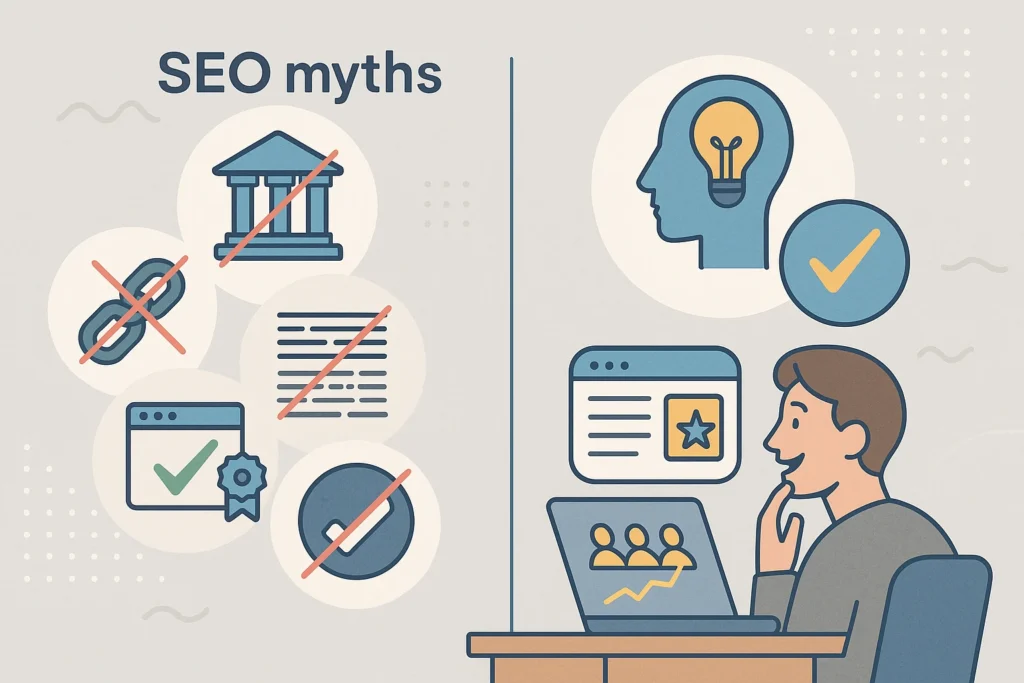
These ranking patterns expose five persistent myths: perfect technical scores guarantee rankings, more backlinks always win, keyword stuffing works, older domains dominate, and technical fixes come first.
Let’s break down each one.
- Perfect Technical Scores Guarantee Rankings: Flawless technical SEO doesn’t guarantee rankings if your content fails to match what searchers actually want to find.
- More Backlinks Equal Better Rankings: Aggressive link building produces weaker results than naturally earned links from genuinely relevant sources.
- Keyword Stuffing Works: It doesn’t (and yes, we’ve all tried it). Strategic keyword placement in natural content beats cramming keywords everywhere.
- Older Domains Always Win: Domain age becomes less important when fresh content better addresses current search intent.
- Fix Every Technical Issue First: Technical fixes help, but they’re pointless if your core content doesn’t solve user problems. Start with content quality, then optimise technical elements.
The truth? Focus your SEO efforts on what users need, not what technical checklists demand.
User Signals That Override Technical SEO Performance
Beyond checking off technical requirements, the algorithm watches how real people interact with web pages. A page with a 4-second load time can rank above faster competitors if visitors stay longer and don’t bounce back to search results.
So what does this actually mean for you? Search engines track how long visitors stay on your web pages and whether they return to search results immediately.
If people stick around, read your content, and find what they need, those user interaction signals override many technical SEO issues. The algorithm prioritises user experience because engagement proves your page delivers better solutions than alternatives with flawless metrics.
How to Spot Ranking Opportunities Others Miss
Here’s what most people overlook: even the highest-ranking pages often have clear content gaps. They answer the main question but skip the follow-ups people actually search for next. Identifying these gaps is one of the fastest ways to outrank pages with stronger domain authority and bigger backlink profiles.
Let’s see where to find them.
Target Questions High-Authority Pages Ignore

Top-ranking pages often cover broad queries but miss specific follow-ups. For example, a page about “how to start a blog” might nail the basics but completely skip questions like “how much does hosting actually cost” or “which platform works best for beginners with zero tech skills.”
These missing answers are your opportunity. Focus on questions in “People Also Ask” sections that top results don’t fully address. Targeted content answering these gaps can outrank pages coasting on old authority.
Keywords Where Fresh Content Wins
The second opportunity? Outdated content. Look for search terms where top results haven’t been updated despite changes in the topic (happens more often than you’d think).
A 2019 page ranking for “best email marketing tools” is a perfect example. Half those tools don’t even exist anymore, which makes it vulnerable. Updated content addressing what’s actually available now can outrank these older pages easily. When you see top results with publish dates from years ago, you’ve found your opening.
Put User Intent at the Centre of Your Strategy
These ranking patterns show that understanding search intent matters more than obsessing over every technical detail. Google rewards pages that solve real problems, not pages that simply check every box on an SEO audit.
Focus your SEO efforts on answering real questions thoroughly rather than gaming traditional ranking factors. Create high-quality content that meets what people are actually searching for, and build links naturally through genuinely valuable resources.
Need help applying these insights to your site? Reach out, and we’ll help you build an SEO strategy that puts user intent first.